System Administrators can determine which fields are available as columns in the Gantt chart view.
Top Tip
- If a user doesn't want to see a particular column on their Gantt chat, they can hide it by clicking on the Settings Cog and unticking it. See How to adjust the Gantt settings (Cog)
To add new a column onto the Gantt chart, whilst in the Test site go to Administration Cog > Configuration and navigate to the relevant stage or governance report you wish to amend.
Locate the Task & Milestone one-to-many control and then click Edit against the field you want to add as a column to the Gantt view. Note: not all fields can be added as columns i.e. you can't add a free text field or multi-select lookup. If the field you have selected can be added as a column, you will see the following checkbox:
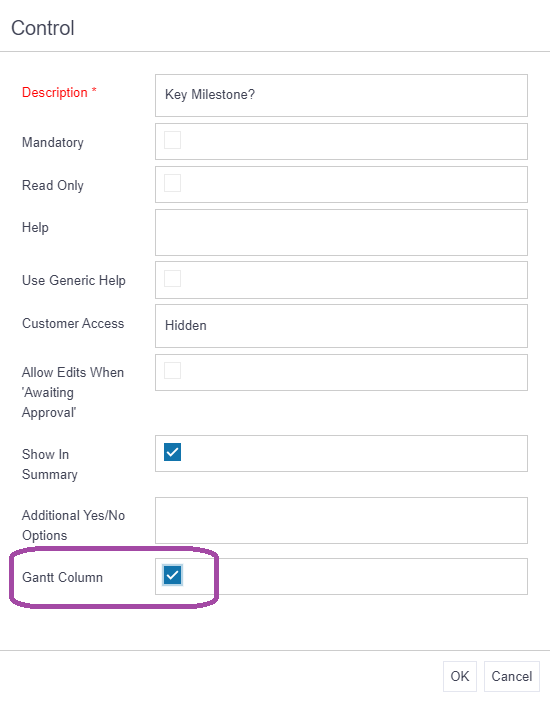
Simply pop a tick in the box and click OK. The field will now display as a column in the Gantt chart view for the amended stage or governance report. Repeat as needed for additional stages or governance reports.
Advice
Only the following field type can be added as Gantt columns:
- Fixed length text
- Numeric
- Lookups
- Date
- Owners