What is the Change History?
Verto has field level savings which means that when the user clicks away from a field, the system will automatically save the last change made to it. All of these changes are recorded in a change history log. Changes can be viewed at either the project level or individual field level. If a user makes a mistake and accidentally deletes something, the change history option means this mistake can be easily undone.
System notifications can be set-up to notify a user when a change is made to any field in a project.
Field Level
To view a change at field level, click on the relevant field name and click Change History.
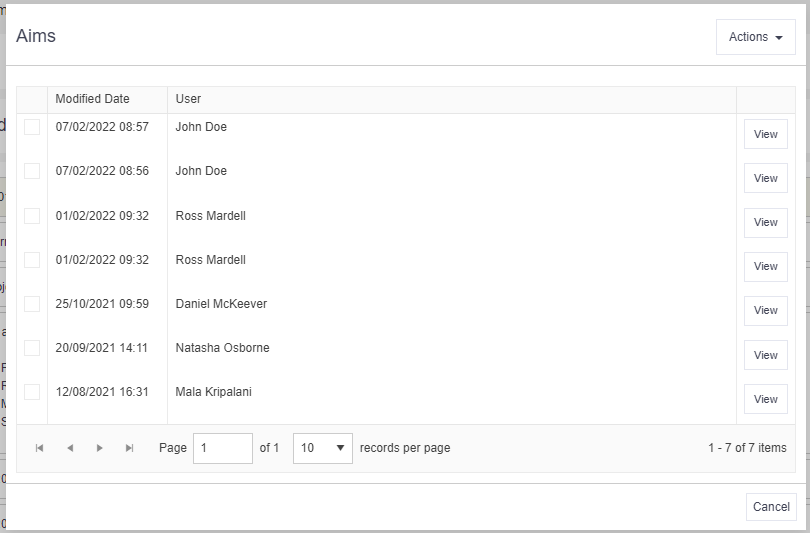
You will see a list of all the changes made to that field (the most recent one first). Click View on any one to see more details.
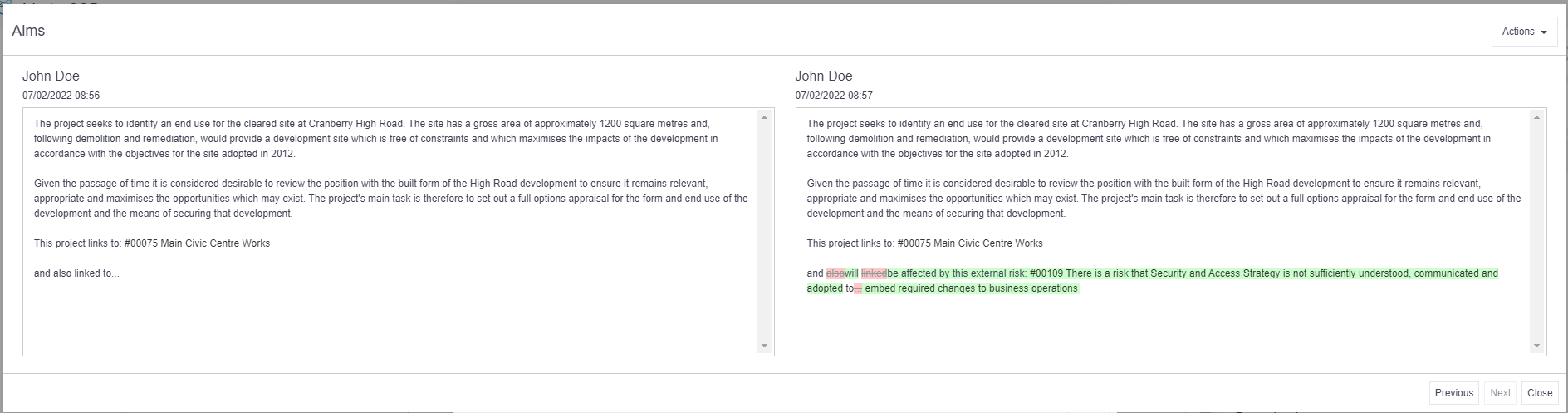
The most recent change made to the field will be presented on the right of the screen and the previous change on the left. Any deleted text will be highlighted in red and any new text will be in green. Click Actions > Revert to change the contents of the field from its current position to the previous.
This action will also form part of the field’s change history.
Project Level
To view a change at project level, click Actions > Change History.

Choose your preferred layout by clicking on the layout button in the top right-hand corner:

Table Layout
You will see a table view of the most recent changes. Click View on any one to see more details.

Top Tip
- Use the column filter funnels to search for a specific record.
Timeline Layout
You will see a timeline view of change ‘bubbles’, each of which can be clicked on to reveal a list of changes made during that time period.

Filters
Click Actions > Filter. The filter will allow you to focus on a particular period and, if required, on a specific user.

Advice
- Changes made via a governance report will not be reflected in the Change History view at Project Level.
Watch this video to find out more: